

Navigation: Accounting → Quotes → Quote → New → Material Order
Overview
When a customer accepts a quote that includes SRS Distribution products, you can place the material order at your SRS branch without leaving Zuper. Zuper reads the line items on the quote, pre-fills your SRS supplier details, and sends the material order (MO) directly to SRS. Once SRS accepts the order, the SRS Order ID, delivery status updates, and supplier invoice sync back to the MO automatically — so your procurement and billing records stay in step. Because the MO is built from the quote, you do not need to re-enter any line items manually. You can also create a MO from a quote in Draft or Accepted status, so you do not need to wait for customer acceptance before ordering materials.Before you begin
Three things must be in place before you create a MO from an SRS quote:- Your SRS Distribution integration must be installed and at least one branch must be active. See SRS Distribution integration — setup and branch management.
- Your parts catalog must be linked to SRS. See Linking SRS products to your Parts and Services catalog.
- The line items on your quote must be mapped to SRS catalog products. Only mapped items appear in the item-selection step. You can still add items to a quote that you do not plan to procure from SRS.
Configure purchasing settings
Before you create your first SRS material order, confirm the following settings are in place.- Go to Settings.
- Select Purchasing, then select General Settings.
- Select the Material Orders tab.
- Under General Settings, confirm the following values:
- Select Save.
Require Supplier Approval must be set to Yes when placing orders to SRS Distribution. If this setting is off, MOs bypass the supplier acceptance step. The SRS Order ID will still appear on the MO once SRS processes the order.
Create a material order from a quote
Open the quote and start a material order
- Go to Accounting from the left navigation menu and select Quotes.
- Open the quote that contains the line items you want to procure from SRS.
- Select New at the top right of the quote, then select Material Order from the dropdown.
The Supplier panel on the right side of the quote shows the SRS supplier pre-filled when your line items are linked to the SRS catalog. If you updated the supplier assignment on the quote directly, the MO inherits that change automatically.
Select the items to purchase
The Select the items you want to purchase dialog opens, listing all eligible line items from the quote.- Select the checkbox next to each item you want to include in the MO. All items are selected by default.
- Use the Search Item field to find a specific item by name.
- Review the Required Qty column. This value is pulled from the quote line item.
- In the Select Supplier column, confirm that the correct SRS branch is assigned to each item.
The SRS Supplier branch is pre-filled based on your catalog settings. You can change the branch for an individual item by selecting a different option from the Select Supplier dropdown.
- Select Next.
Complete the material order details
The Create Material Order screen opens. For each product group, you will see the available SKU variants from SRS. Select SKU options- Review the items listed under each product heading.
- Select the checkbox next to the specific SKU variant — for example, a color or size option, you want to order.
- Confirm the Unit Purchase Cost for each selected variant. Prices are pulled from the SRS catalog and updated based on the unit of measure.
- Adjust the Required Qty field if needed.
- Select the appropriate unit of measure from the dropdown next to the quantity field.
- Add any line-level notes in the Remarks field.
The unit purchase cost updates based on the unit of measure you select, but the quantity does not. Verify the quantity and unit of measure together before proceeding — both values determine the total order amount sent to SRS.
- Enter a MO Title. This is pre-filled as “MO for Quote” followed by the quote number and can be edited.
- Select a Delivery Method. Select Direct Shipment to Job’s site to send materials to the job address on the quote.
- Select a Delivery Time — for example, Anytime.
- Select a Template for the MO document.
- Select a Payment Term — for example, Immediate.
- Enter a Required By date. This field is mandatory.
- Add any order-level notes in the Remarks field.
- Select Create Material Order.
If your quote includes items from multiple suppliers, Zuper creates a separate MO for each supplier in a single step. Each MO appears individually under the Material Orders panel on the quote.
What happens after you create the MO
Draft status and submission
The MO is created in Draft status and linked to the quote under the Material Orders panel in the right sidebar. The SRS Order ID field on the MO is empty at this stage. To move the MO forward, open it and select Mark as Submitted.If Automatically Send MO to Supplier after Approval is enabled in your purchasing settings, Zuper sends the MO to SRS as soon as it clears the approval step — no manual send is needed.
Supplier accepted status and SRS Order ID
Once SRS accepts the order, Zuper automatically updates the MO status to Supplier Accepted, populates the SRS Order ID field with the order reference number from SRS, and records the MO Sent Date. The SRS Order ID appearing on the MO confirms that SRS has accepted and is processing your order.Delivery status updates
SRS pushes delivery status updates back to the MO in Zuper. The Delivery Status field reflects the current state of the shipment:Receive items after delivery
After the materials are delivered, verify receipt in Zuper.- Open the MO from the Purchasing module or from the Material Orders panel on the quote.
- Select Receive Items.
- Enter the quantity received for each line item.
- Select a delivery location if applicable.
- Select Confirm.
Invoice sync from SRS
When SRS issues an invoice for the delivered materials, it syncs automatically to the MO in Zuper. The MO status updates to Invoiced.You do not need to manually enter the SRS invoice. Zuper fetches it automatically once SRS marks the order as invoiced on their end.
Add an SRS product to a material order
The Add product from SRS option appears only when the supplier on the material order is an SRS Distribution branch. If you do not see this option, confirm that the correct suppliers are selected on the material order.
- Go to the Purchasing module and select Material Orders.
- Open an existing draft material order, or select + New Material Order to create a new one.
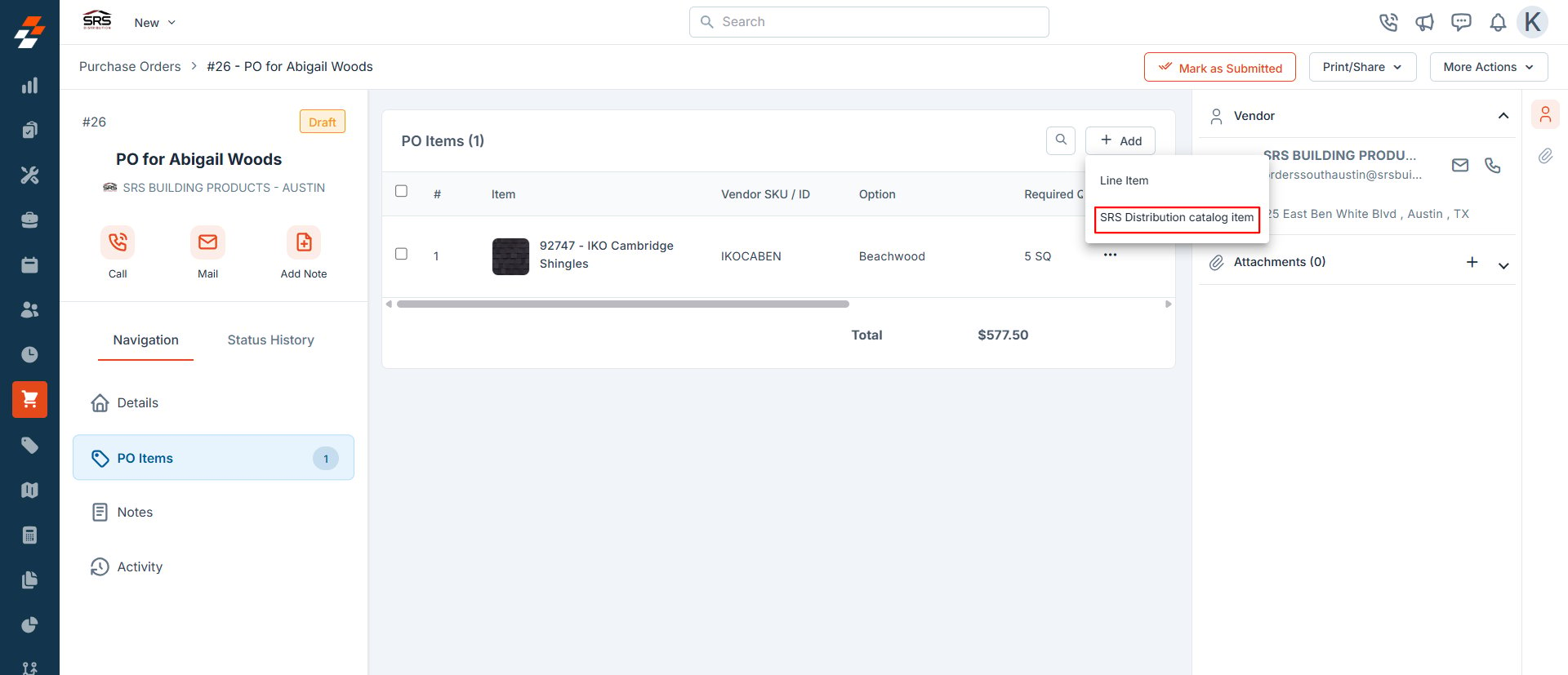
- In the MO Items section, select + Add.
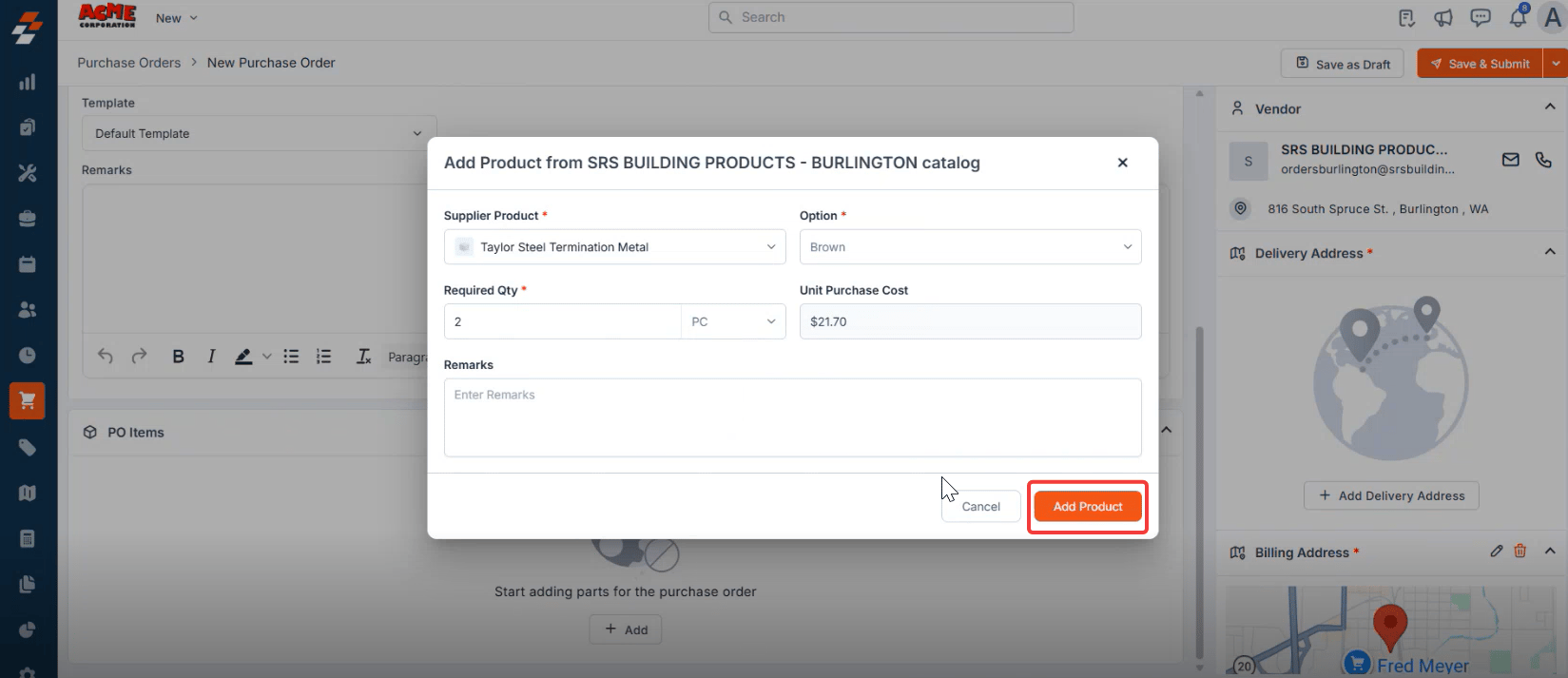
- From the dropdown, select Add product from SRS. The Add Product from SRS [Branch Name] catalog dialog opens.
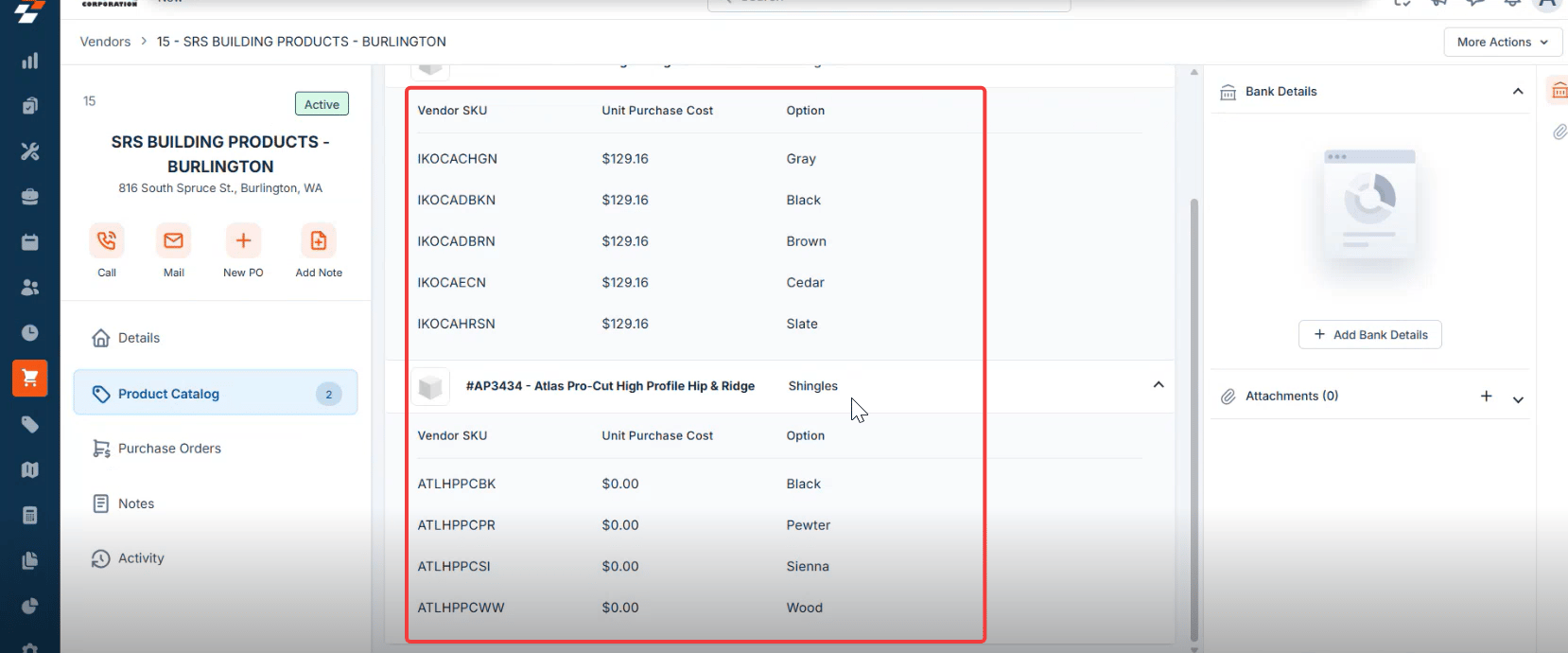
- In the Supplier Product field, select the product you want to order from the SRS catalog.
- In the Option field, select the variant you need — for example, a color such as Brown or Gray.
- In the Required Qty field, enter the quantity. Then select the unit of measure from the adjacent dropdown — for example, PC or RL.
- Review the Unit Purchase Cost field. Zuper populates this automatically from the SRS catalog. Update it if needed.
- In the Remarks field, enter any notes or special instructions for this line item. This step is optional.
- Select Add Product. The product appears as a new line item in the MO Items section, with the supplier SKU, option, and cost pre-filled.
Limitations
Before you submit a MO, confirm all item selections, quantities, and delivery details. Once a MO is submitted, the following restrictions apply:FAQs
Can I create a MO from a quote that is still in Draft status?
Can I create a MO from a quote that is still in Draft status?
Yes. You can create a MO from a quote in either Draft or Accepted status. The quote does not need to be accepted by the customer before you order materials.
The SRS supplieis not pre-filled on one of my items. What should I do?
The SRS supplieis not pre-filled on one of my items. What should I do?
This means the line item is not linked to an SRS catalog product. Go to your Parts and Services settings and confirm the item is mapped to the correct SRS SKU. See Linking SRS products to your Parts and Services catalog for guidance.
The SRS Order ID is not appearing on my MO. What does that mean?
The SRS Order ID is not appearing on my MO. What does that mean?
The SRS Order ID populates only after SRS accepts the order. If the field remains empty after submission, verify that Require Vendor Approval is set to Yes in your purchasing settings and that the MO has been sent to SRS. If the issue continues, contact support@zuper.co.
The unit purchase cost changed when I selected a different unit of measure. Is that expected?
The unit purchase cost changed when I selected a different unit of measure. Is that expected?
Yes. The unit purchase cost from SRS is tied to the unit of measure. Selecting a different unit of measure — for example, switching from each to pallet — updates the cost accordingly. Always confirm the unit of measure and cost together before creating the MO.
I need to cancel a MO I already submitted. What can I do?
I need to cancel a MO I already submitted. What can I do?
Cancel and Delete are not available once a MO is submitted. Contact SRS directly to arrange a cancellation, then add a note in the Remarks field of the MO in Zuper to record the outcome. If the issue continues, contact support@zuper.co.